
Tasks help you keep track of everything that needs to be completed before an event. They make it easy to organise work, assign responsibilities, and ensure nothing is forgotten.
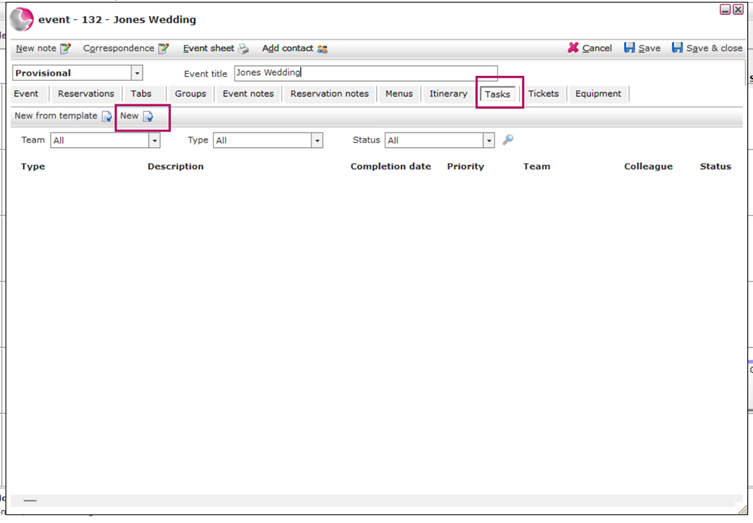
- Open the Event Booking
- Select the Tasks page.
- Click New.
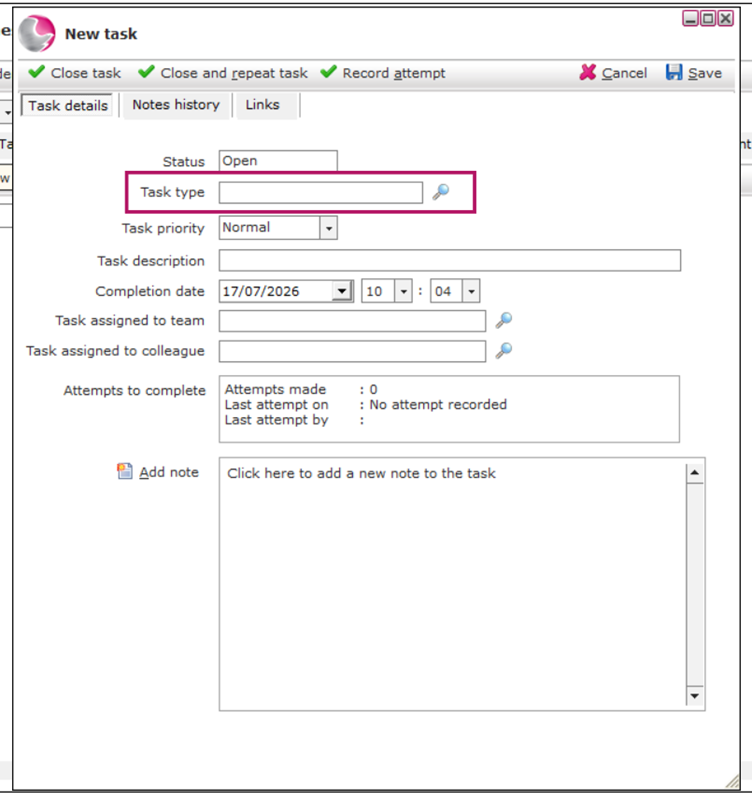
Every task must have a Task Type.
4. Click the magnifying glass next to Task Type.
5. Select a task type from the list.
Don't have the right task type? See How to Create a New Task Type.
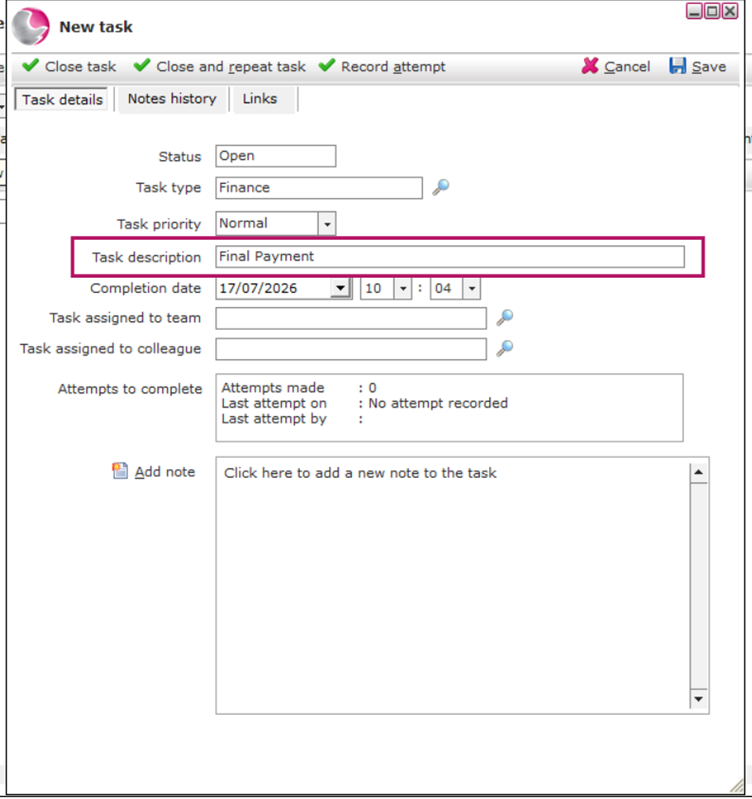
6. In Task Description, enter a clear name for the task.
For example: Take Final Payment
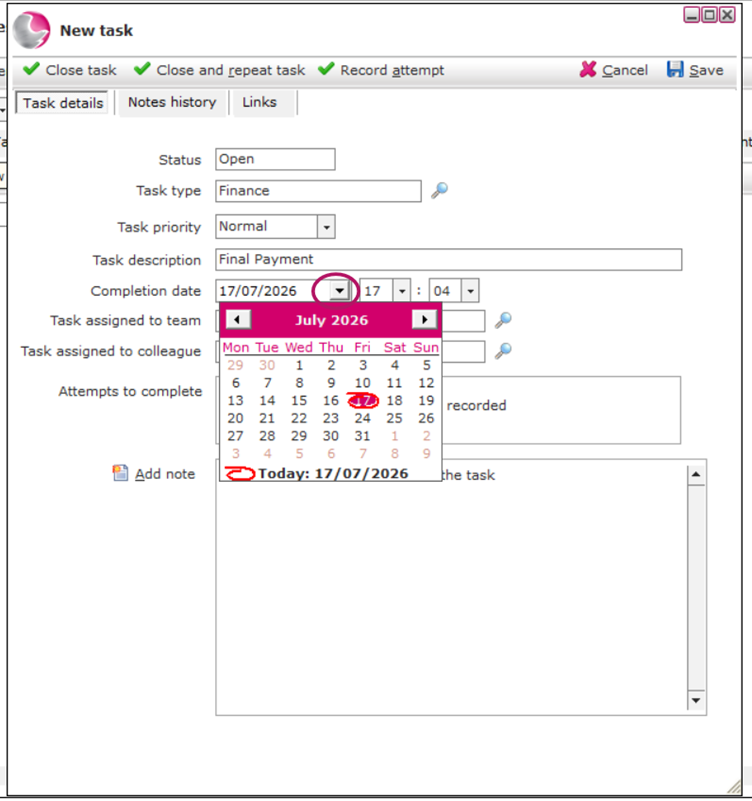
7. Set the Completion Date
Open the calendar. Select the required date and time.
For this example, choose two weeks before the event.
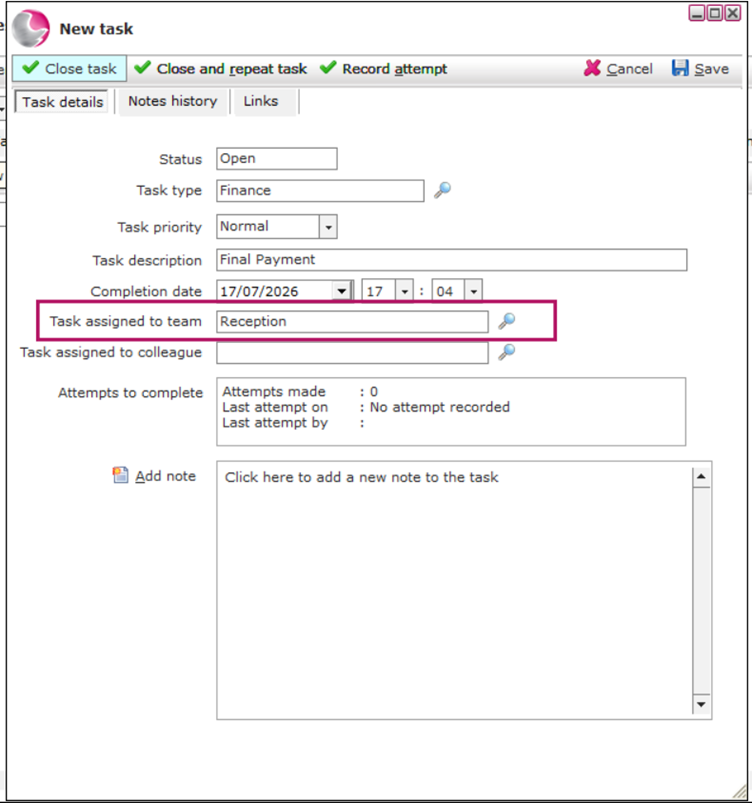
Next, choose which team is responsible for completing the task.
8. Click the magnifying glass next to Team.
9. Select a team.
Need to create a new team? See How to Create a Team.
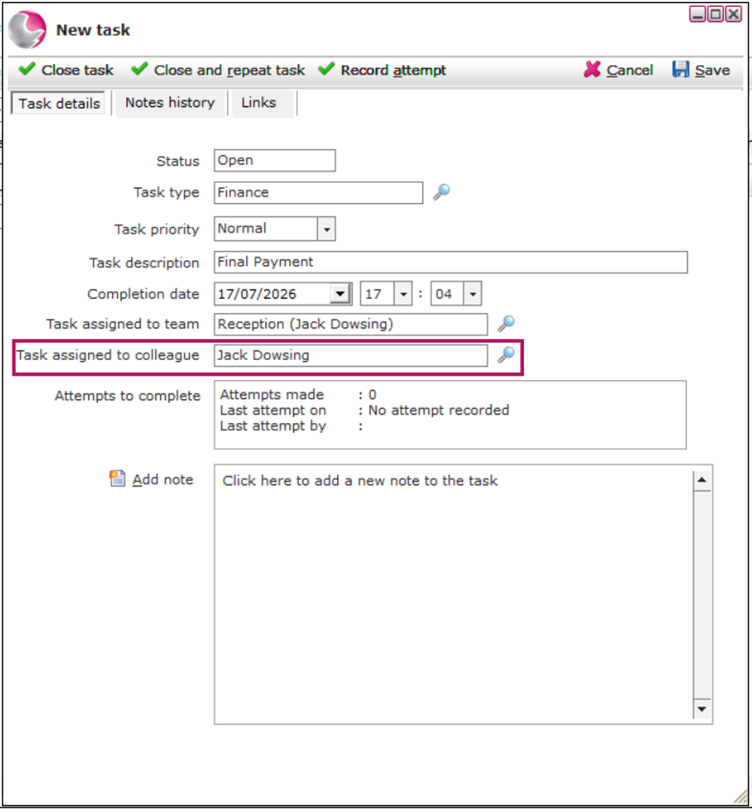
(Optional) Assign to a Colleague
10. If you want, you can assign the task to a specific member of the selected team.
11. Click Save.
Your new task will now appear on the Event Booking.
See next: How to Create a Task Template and How to Add Task from Template to the Event.