
Task Templates help you save time by creating a standard set of tasks that can be reused whenever you need them.
- Go to Maintenance in Hotel Manager.
- Select Event and Task Template.
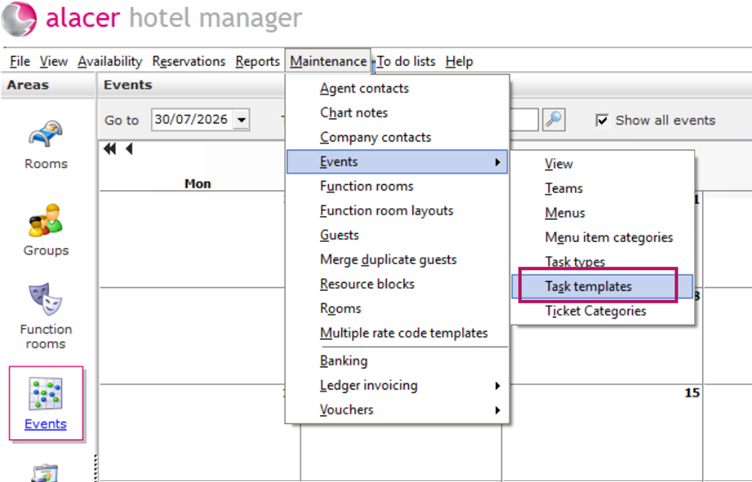
3. The Task Template List will open, showing all currently available templates.
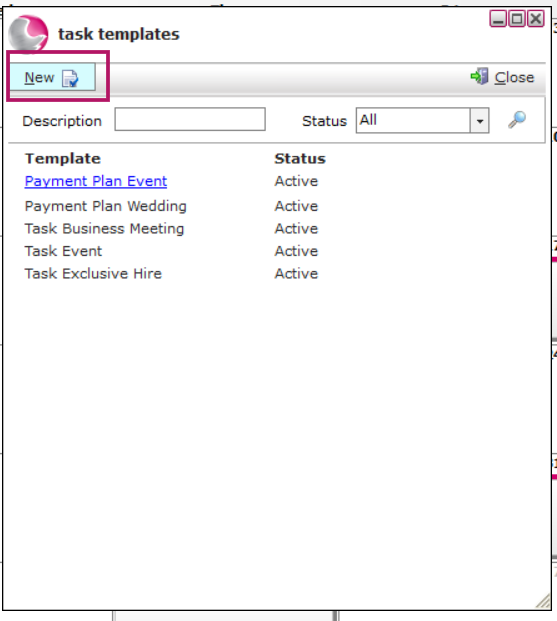
4. To create a new template, click the New button in the top-left corner.
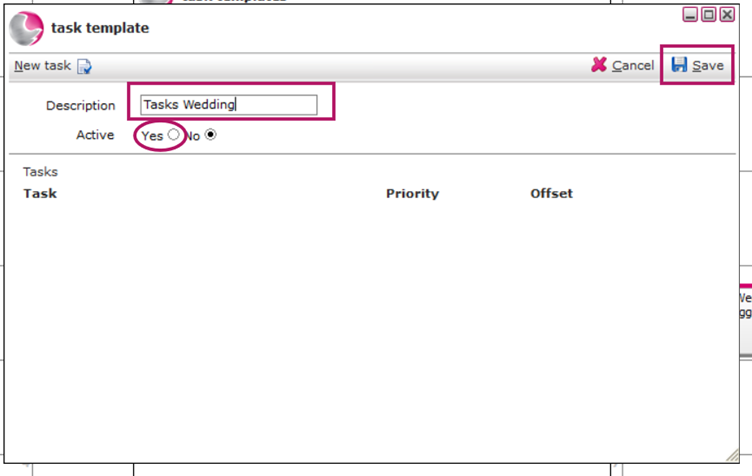
5. Enter the name of your template in the Description field.
For example: Wedding Event Tasks.
6. Click Yes to activate the template.
7. Click Save.
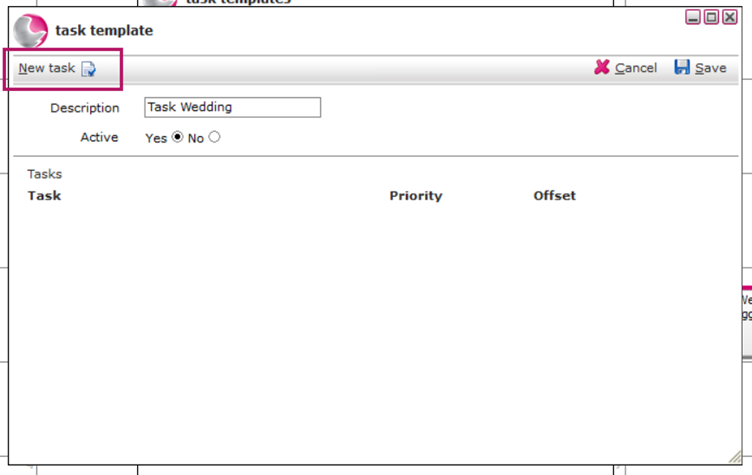
After saving, close the template and open it again. This will allow you to start adding individual tasks to your new template.
8. Open the saved template again.
9. Click the New Task button.
Now you can begin adding the details for your Task Template.
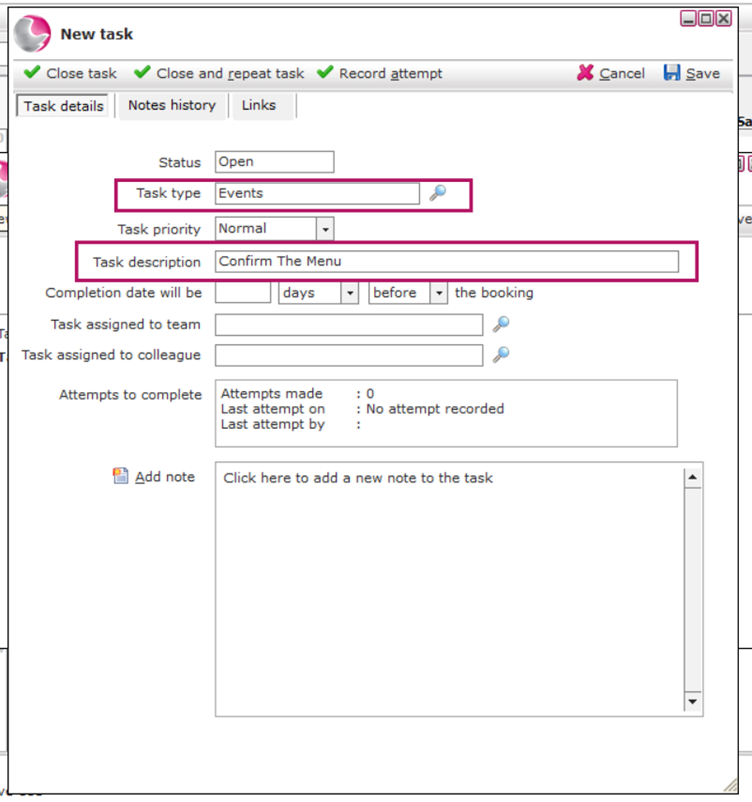
10. Click the magnifying glass icon to search for and select a Task Type.
If you need to create a new Task Type, follow the guide: How to Create a New Task Type.
11. Enter a clear description of what needs to be completed.
Example: Confirm the Wedding Menu
Next, decide when this task needs to be completed in relation to the booking date.
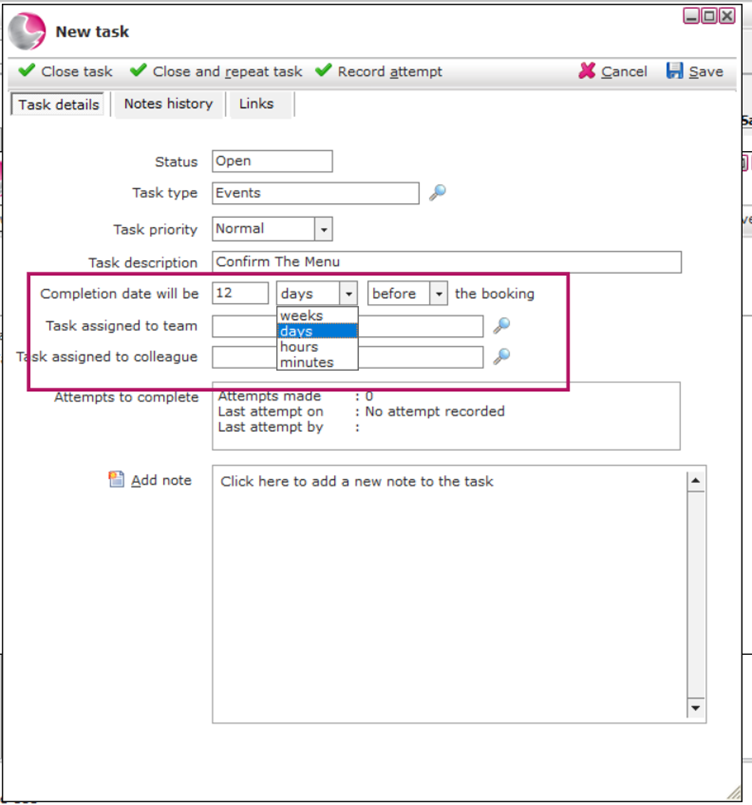
12. Use the dropdown menu to select the timing.
You can choose a timeframe based on:
- Weeks before or after the booking
- Days before or after the booking
- Hours before or after the booking
Example:
For confirming the wedding menu, you may want the task completed 12 weeks before the booking date.
Now choose who will be responsible for completing the task.
13. Select the relevant team responsible for the task.
Need to create a new team? See How to Create a Team.
14. If required, you can also assign the task to a specific colleague.
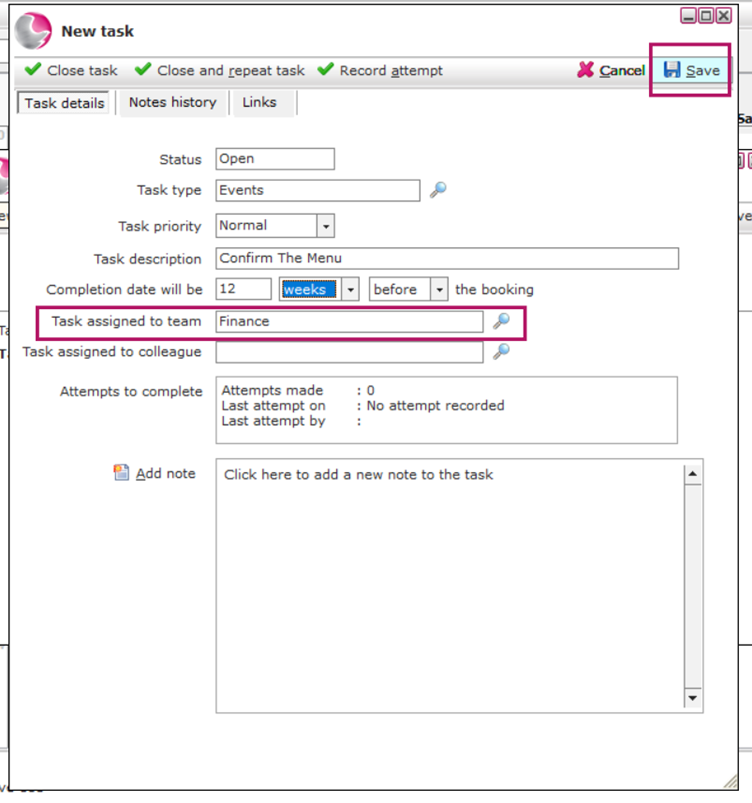
15. Click Save to create the task.
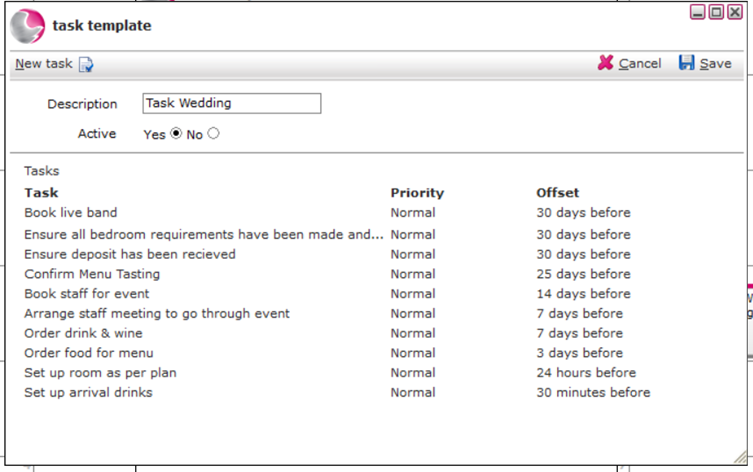
16. The task will now appear within your Task Template.
You can continue adding as many tasks as needed to the template.
See next: How to Add Tasks From a Template, How to Add a New Task