
The list screens give you a quick view of your voucher types, promotions, sold vouchers and vouchers waiting to be shipped. Open them from the List Screen heading in the Shortcuts menu.
In this article
Voucher types
The voucher types list shows every type of voucher that has been created.
In the Shortcuts menu, under List Screen, click Voucher Types.
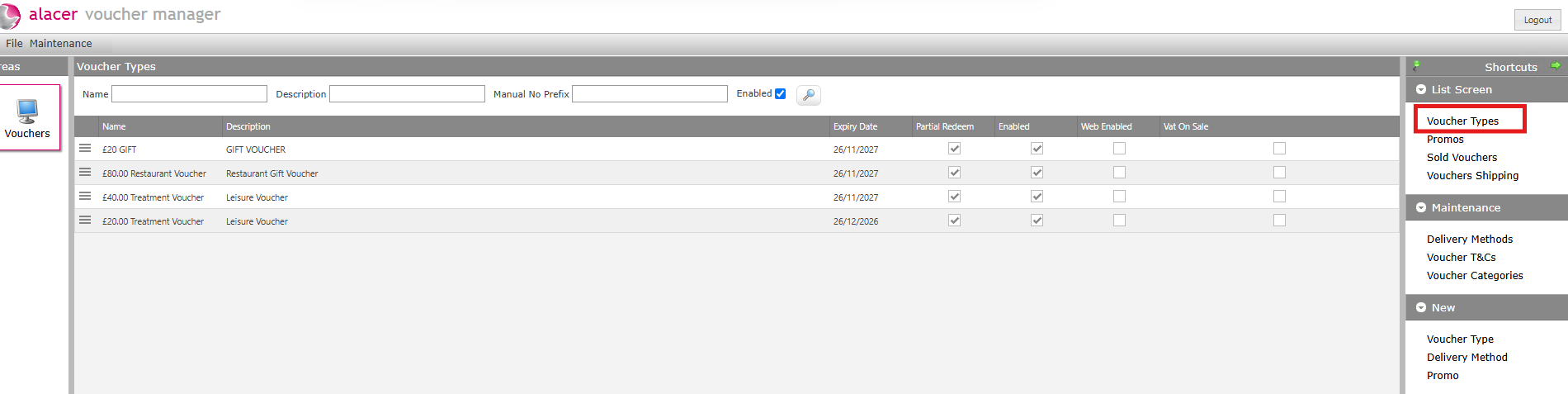
To find a voucher type, use the Name, Description or Manual number prefix filters. Tick Enabled to hide disabled voucher types.
| Column | What it shows |
|---|---|
| Name | The name of the voucher. It should make clear what the voucher is for. |
| Description | More detail about the voucher and what it's for. |
| Expiry date | The date the voucher expires. |
| Partial redeem | Ticked if the voucher doesn't have to be used all at once. This is usually used for monetary vouchers. |
| Enabled | Ticked if the voucher can be sold and used. |
| Web enabled | Ticked if the voucher can be sold on your website. |
Good to know: A voucher type that has been sold can't be deleted. If you no longer use it, disable it instead. See How to Create a New Voucher Type.
Promos
Promos unlock a different price for an existing voucher type. For example, if an afternoon tea voucher is usually £15.00, you could run a half price promotion for a limited time.
In the Shortcuts menu, under List Screen, click Promos.
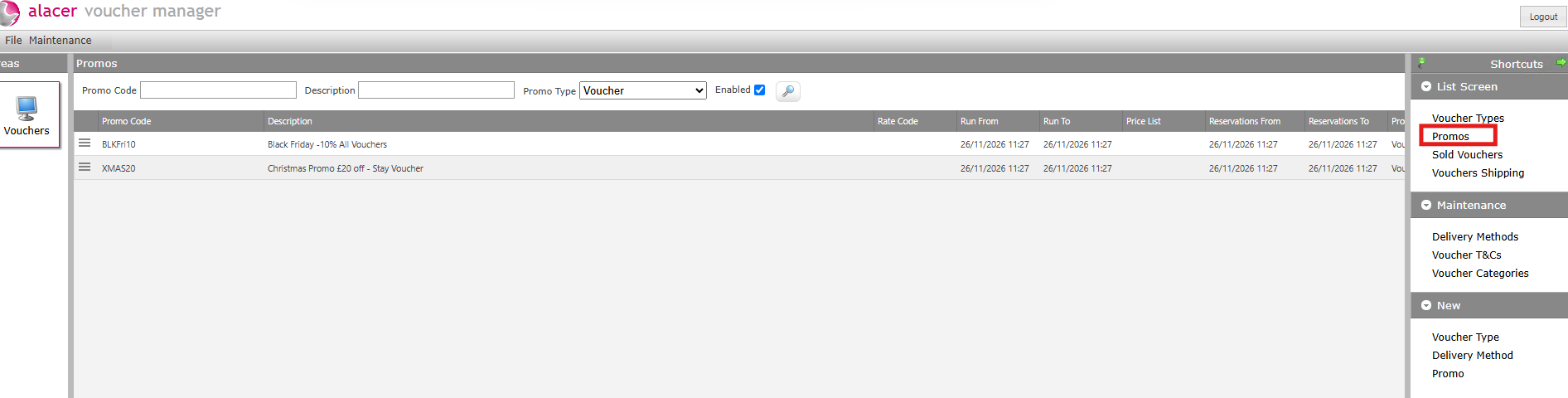
To find a promo, use the Promo code or Description filters, or select a Promo type from the list. The promo type list is useful if you don't know the promo code or name.
| Column | What it shows |
|---|---|
| Promo code | The name of the promotion. It should make clear what the promotion is. |
| Description | A description of the promotion. |
| Rate code | The rate code the price list is linked to. |
| Run from | The date the promotion starts. |
| Run to | The date the promotion ends. |
| Price list | The price list linked to the voucher charge item used for the promo. |
| Promo type | The type of promo, for example Voucher. |
| Use count | How many times the promo has been used. |
| Use limit | How many times the promo can be used. |
Want to set up a promo? See How to Create Voucher Promo's.
Sold vouchers
The sold vouchers list shows every voucher that has been sold.
In the Shortcuts menu, under List Screen, click Sold Vouchers.

To find a voucher, use the Type, Voucher Manual No or Status filters. To search by date, enter the Sold From and Sold To dates and make sure Apply Dates is ticked. Click Export To Excel to download the list.
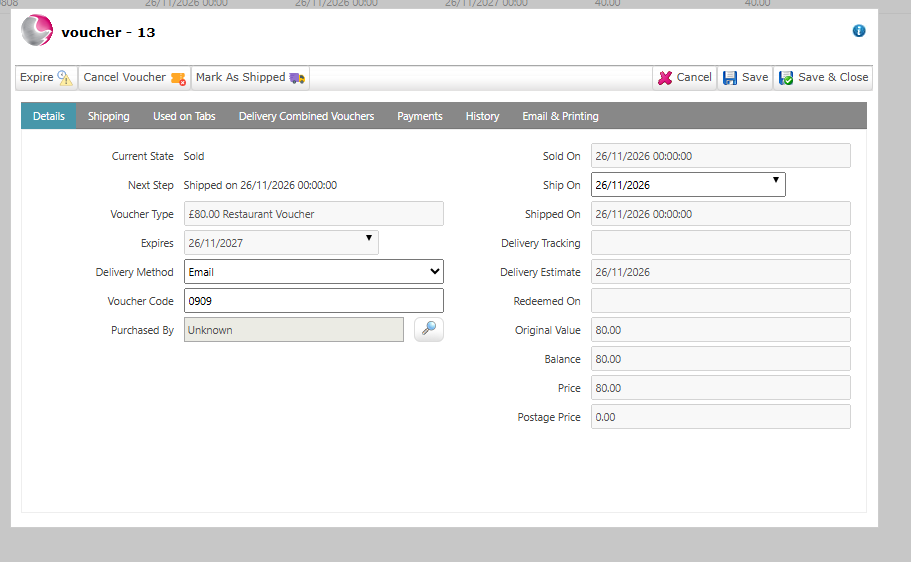
Click a voucher to open it. Use the tabs along the top to move between its pages. The Expire, Cancel Voucher and Mark As Shipped buttons are also here. See Sold voucher pages below.
| Column | What it shows |
|---|---|
| Voucher type name | The name of the voucher type. |
| Status | The voucher's current status. |
| Manual no | The unique number shown on the voucher. |
| Sold on | The date the voucher was sold. |
| Posted on | The date the voucher was posted or sent. |
| Expires on | The date the voucher expires. |
| Value | The value of the voucher. |
| Balance | What's left on the voucher. If a partly redeemable voucher hasn't been fully used, the remaining balance shows here. |
Sold voucher pages
| Page | What it shows |
|---|---|
| Details | The main details of the voucher. |
| Shipping | The recipient's details. If you post the voucher from site, mark it as shipped so others know it's been sent. See How to Mark a Voucher as Shipped. |
| Used on Tabs | The tab the voucher was redeemed against, the tab description, the tab balance and the original voucher value. See How to Use History & Used on Tabs. |
| Delivery Combined Vouchers | If several vouchers were bought online for posting, the guest can choose to have them sent to the same address. |
| Payments | The payment taken when the voucher was sold. |
| History | What has changed on the voucher, when, and who changed it, for example when it was shipped and by whom. |
| Email & Printing | Print the voucher or email it to the recipient. See How to Print or Email a Sold Voucher. |
Need to cancel or expire a voucher? See How to Cancel a Sold Voucher and How to Expire a Sold Voucher.
Vouchers shipping
The vouchers shipping list shows the vouchers that need to be posted.
In the Shortcuts menu, under List Screen, click Vouchers Shipping.
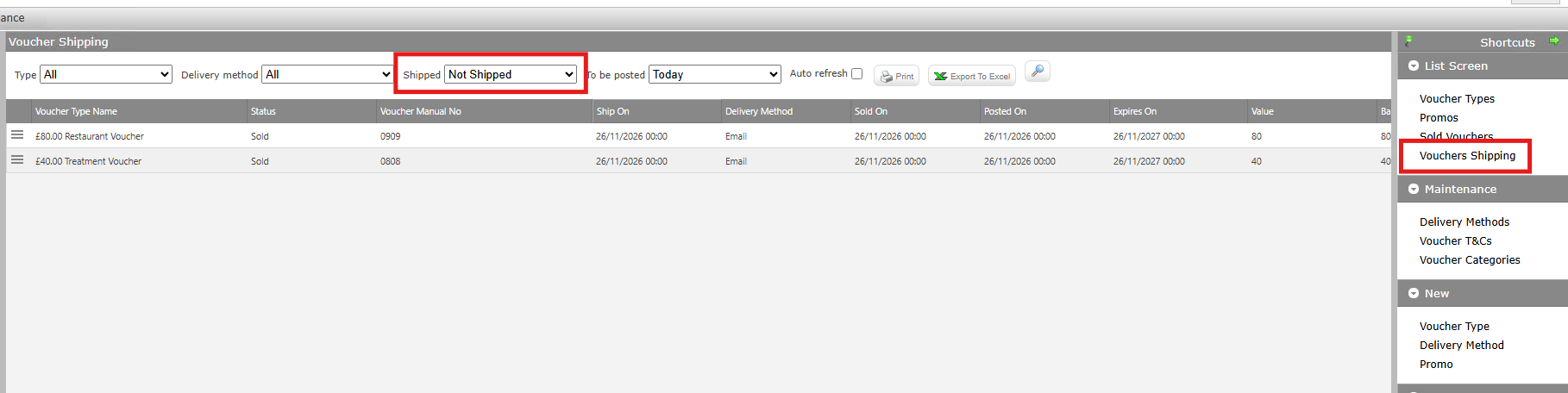
The list opens showing vouchers that are Not Shipped and due to be posted Today. To see other vouchers, change the Type, Delivery method, Shipped or To be posted filters at the top of the page. Click Print or Export To Excel to get a copy of the list.
Click a voucher to open it, then click Mark As Shipped once it's been sent.
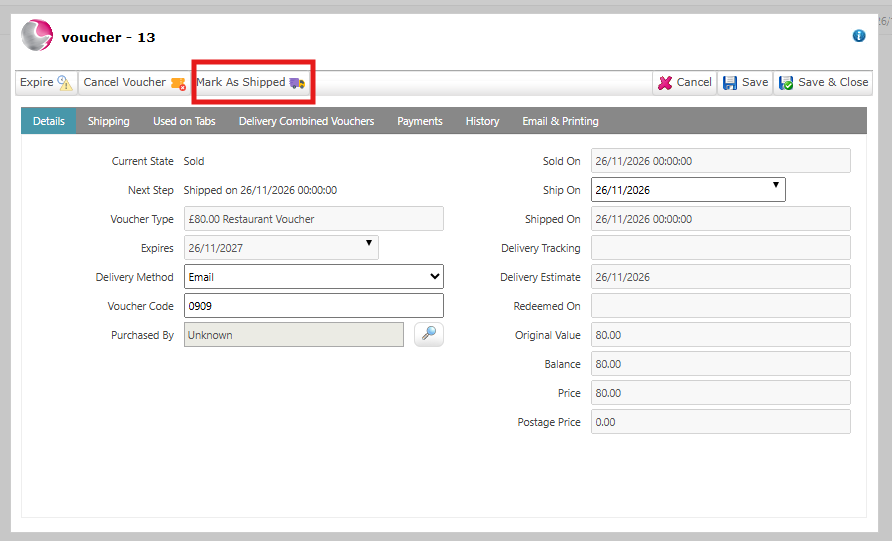
Click Save & Close.
Related articles